

Invoices de venta
Lista de facturas
Section titled “Lista de facturas”Accede a Ventas → Facturas para ver todas las facturas emitidas.
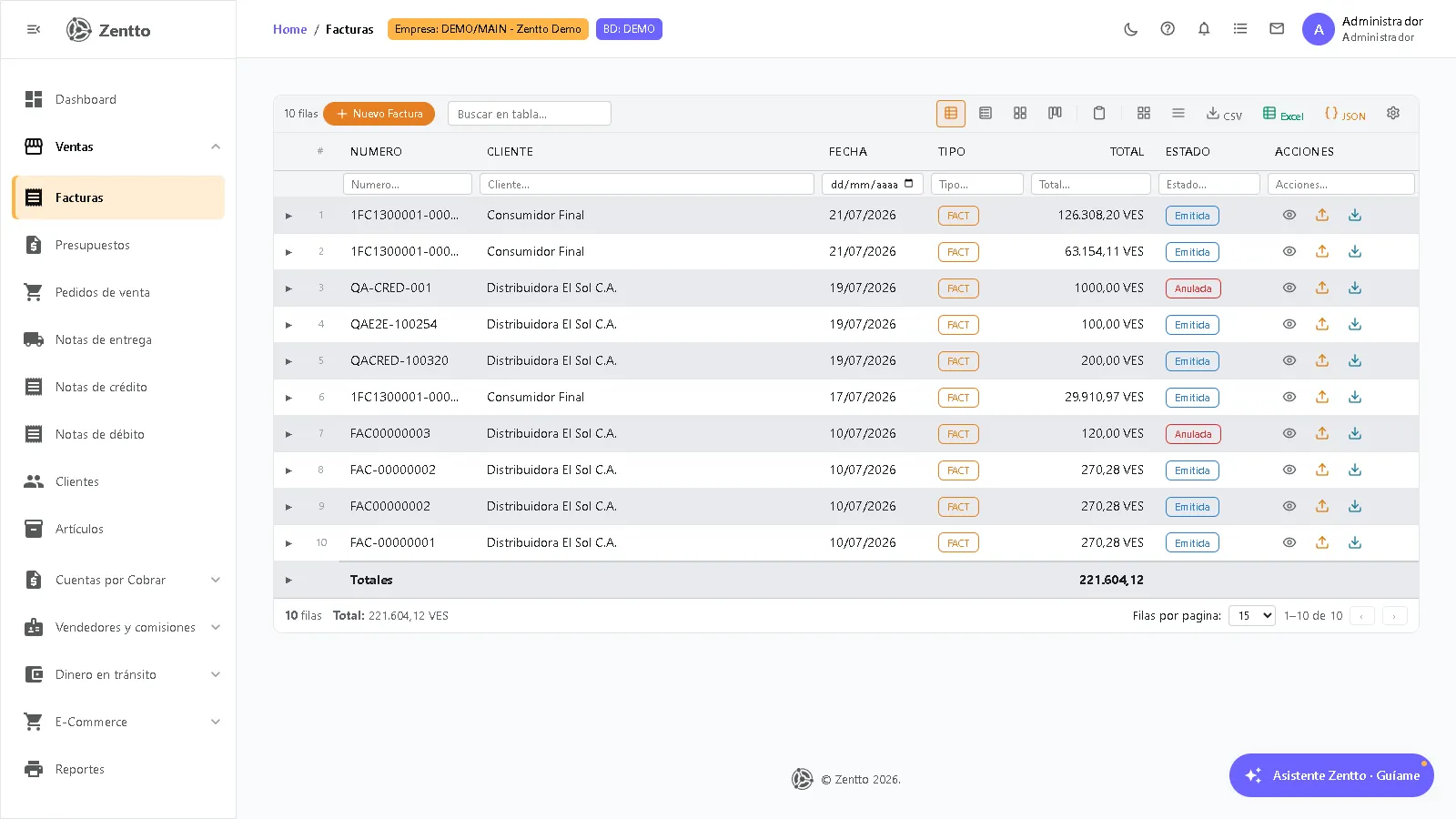
La lista usa la grilla estándar de Zentto:
- Búsqueda rápida y filtros por columna (número, cliente, fecha, tipo, total, estado).
- Master-detail: expande una fila para ver los renglones de la factura sin abrirla.
- Totales al pie y exportación desde la barra de herramientas.
- Columna Estado: Emitida, Pendiente, Pagada o Anulada.
Acciones por fila: Ver, Nota de Crédito y Nota de Débito. Una factura emitida no se edita ni se anula desde la lista: la corrección o reversión se hace con una nota de crédito (ver más abajo).
Crear una factura
Section titled “Crear una factura”Paso 1: Encabezado
Section titled “Paso 1: Encabezado”- Haz clic en + Nuevo Factura
- Selecciona el cliente (buscador con autocompletado)
| Campo | Descripción |
|---|---|
| Cliente | Cliente al que se emite la factura |
| Fecha | Fecha de emisión (por defecto hoy) |
| Referencia | Referencia libre del documento |
| Condición de pago | Contado o Crédito / cuenta por cobrar |
| Moneda | VES, USD o EUR |
| Serie fiscal | Si la empresa tiene series fiscales activas, se elige la serie que emitirá el documento |
| Observaciones | Texto libre que aparece en la impresión |
El correlativo lo asigna el backend al emitir (secuencias por empresa/sucursal); nunca se escribe a mano.
Paso 2: Detalle de artículos
Section titled “Paso 2: Detalle de artículos”La captura de renglones es maestro-detalle con teclado: busca el artículo por código o descripción, indica cantidad, precio, descuento y alícuota de IVA, y pasa al siguiente renglón sin tocar el mouse. Las alícuotas son las configuradas para el país de la empresa, incluyendo Exento (0%).
Los totales (subtotal, descuentos, IVA por alícuota y total) se calculan en vivo. Una factura en construcción se guarda como borrador local que sobrevive refresh o corte de conexión.
Paso 3: Configurar pago y emitir
Section titled “Paso 3: Configurar pago y emitir”Al hacer clic en Configurar pago y emitir se abre la pantalla de cobro (la misma del POS):
- Pagos mixtos: combina efectivo, transferencia, tarjeta, pago móvil, etc.
- Divisas: pagos en USD/EUR con su tasa de cambio.
- IGTF: se calcula automáticamente sobre los pagos en divisas que apliquen.
- Retenciones: IVA, ISLR o municipales del cliente agente de retención.
- Crédito: si la condición es Crédito y el cliente tiene cupo habilitado, el saldo restante queda como cuenta por cobrar; sin cupo, el sistema lo indica.
La factura solo se emite cuando el pago queda confirmado. Al emitir, el sistema asigna el correlativo fiscal, descuenta el inventario, genera el asiento contable y actualiza el saldo del cliente en CxC.
Detalle de la factura
Section titled “Detalle de la factura”Al abrir una factura se muestra el stepper Emitida → Cobrada, las tarjetas de cliente y documento (número de control y serie fiscal si aplican), las líneas con totales, las formas de pago aplicadas (el número de comprobante y la fecha de cada pago se pueden completar aquí) y el panel de saldo Pagado/Pendiente.
Imprimir factura
Section titled “Imprimir factura”La impresión depende de la configuración fiscal del módulo de ventas de la empresa:
- Máquina fiscal (Venezuela) — la factura sale por el agente fiscal.
- Imprenta digital (propia o externa) — botón Descargar PDF fiscal en el detalle.
- Forma libre — botón Imprimir con el formato del módulo (personalizable en Reportes).
Anular o corregir una factura
Section titled “Anular o corregir una factura”Una factura emitida no tiene botón de anular: la reversión con rastro legal es la nota de crédito (total o parcial). Solo los documentos internos (presupuestos y pedidos) pueden cancelarse directamente.
Credit notes
Section titled “Credit notes”A credit note is a sale return with the full flow: it creates the NOTACRED document, restores inventory for the credited lines (RETURN movements) and posts the reverse accounting entry of the sale.
It can be issued from two places:
- From the list (Sales → Invoices): Credit Note row action.
- From the open invoice: Credit Note button in the detail header.
In the dialog:
- The invoice lines are shown in a selectable grid.
- No selection → full return (all lines).
- Selecting lines → partial return (only the selection restores inventory and adds to the note total).
- Enter the reason and click Issue CN.
It works on invoices from any channel registered in the ERP: manual, POS, restaurant or e-commerce. If the invoice comes from the restaurant, inventory is restored by recipe (each returned dish restores its ingredients, not the dish itself).
Issued notes are listed in the dedicated screen Sales → Credit notes.
Fiscal printer or free-form
Section titled “Fiscal printer or free-form”- Company with fiscal printer (Venezuela): the note is printed by the fiscal agent (same contract as POS) and its number is the machine COO.
- Free-form: the note gets the internal sequence
NC-00000001per company.
Debit notes
Section titled “Debit notes”A debit note is an exceptional charge (late interest, bounced check, price adjustments): it creates the NOTADEB document and the charge entry, without touching inventory. It increases the customer balance.
Available from the same two places (list and open invoice), with two modes:
- Free amount: total charge amount, with optional included VAT.
- By invoice lines: selecting the lines to charge.
Free-form uses the internal sequence ND-00000001. Issued notes are listed in Sales → Debit notes.